Introduction
Have you ever imagined that AI could not only answer your questions but also directly operate your computer?
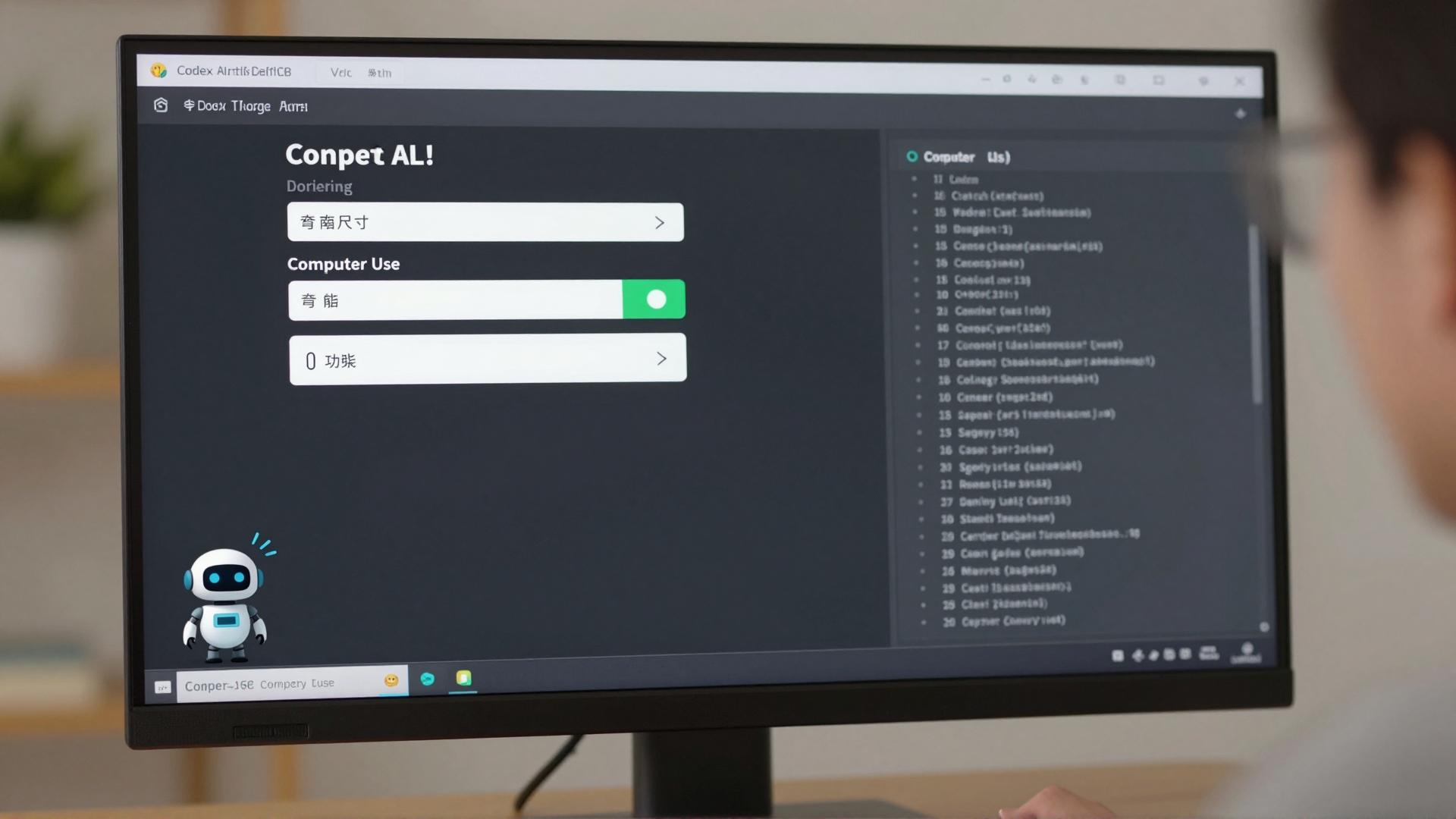
Recently, OpenAI rolled out a significant update for Codex, introducing a core feature called Computer Use.
This feature enables the AI to control your mouse and keyboard, open applications, input text, and click buttons—just like a person using your computer.
I tested it out, and honestly, it works much better than I expected.

In simple terms, Codex will:
Screenshot → Analyze the screen → Decide on actions → Execute clicks/inputs → Loop until complete
It captures your screen in real-time, understands what buttons and input fields are available, and simulates human actions in the background.
The key point is—it runs in the background without affecting your normal computer usage.
While you browse the web, it quietly helps you get things done.
This is a significant departure from previous AI operations.
I had previously tried Claude’s computer operation feature, which was somewhat lackluster, often making mistakes or getting stuck.
However, this version of Codex is noticeably much smarter.
What Can It Do? Test Results
The blogger conducted several tests, each of which was quite realistic:
First: Posting on Twitter.
Just tell Codex to help me post a tweet with the content… It will automatically open Twitter, find the posting box, fill in the content, and pop up a confirmation for you to review.
The gray text expands to show what actions it performed—including a screenshot record.

Second: Writing a document and auto-formatting.
Ask Codex to write a paragraph about AI using Typora.
It first searches for the latest news about Codex on Omni, then organizes the content into Typora, automatically selects a template, and formats it.
The blogger’s feedback is: It adjusts based on visual feedback—for example, if it detects that the text exceeds the page edge, it will make adjustments on its own.
Third: Creating a poetry collection in Keynote.
This was the most impressive.
Tell Codex to create a new Keynote document and write a poem about the wind with an attractive layout.
It automatically creates a blank document, selects a template, and fills in the content.
Moreover, after finishing, it utilized the built-in DALL·E 3 image generation feature to create a cover image for the poem.
Then it automatically fills that image into the Keynote cover background—an entirely automated process.

Fourth: Controlling a self-developed app.
The blogger also tested using it to control an image generation app they developed—telling it what style of image to generate, it automatically opens the app, inputs the prompt, clicks generate, and downloads the image.
Additional New Features
This update includes more than just computer operations; it also introduces several practical features:
Built-in image generation.
Direct integration with DALL·E 3 means Codex can help you create images without switching tools.
File preview upgrade.
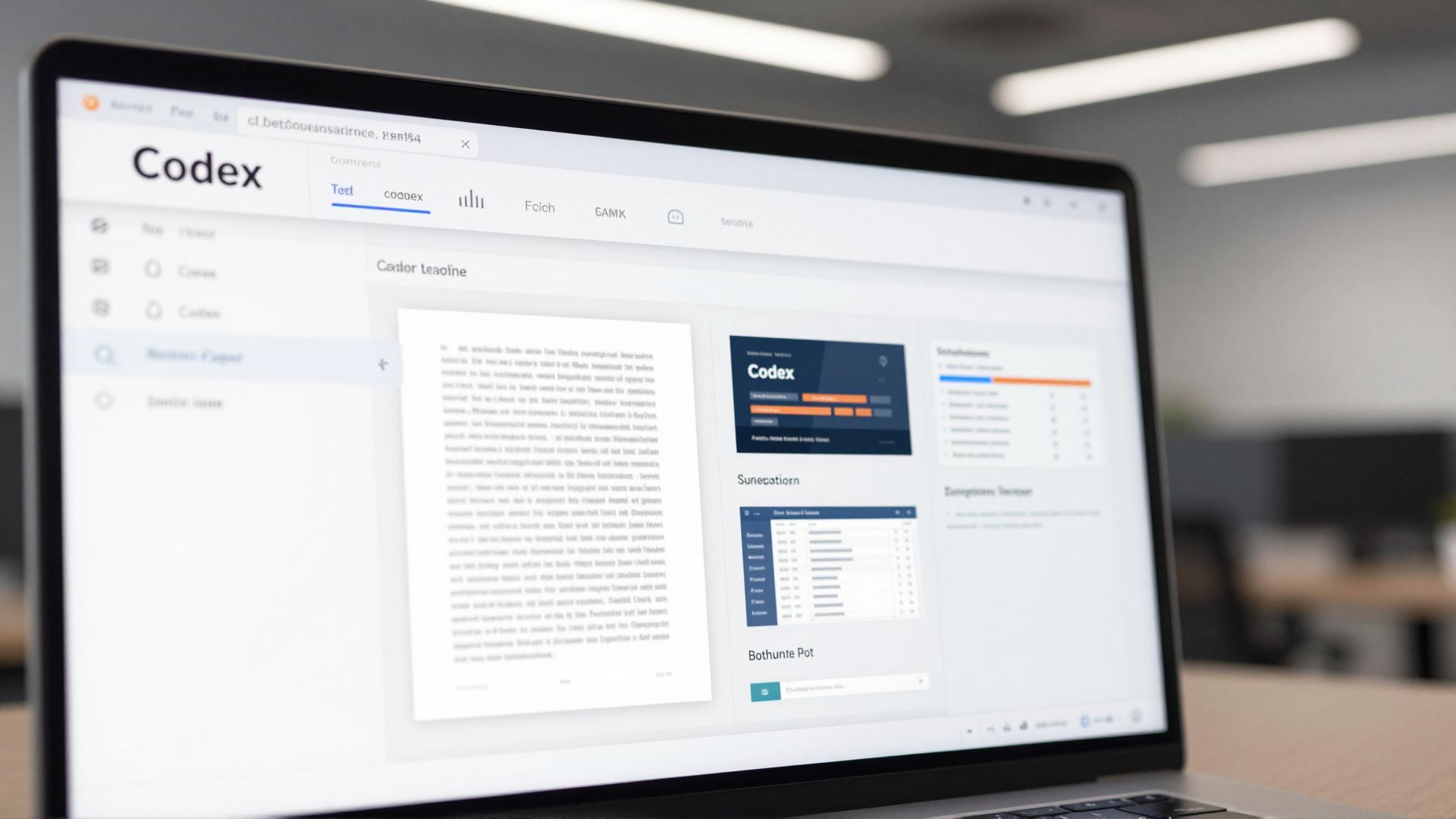
The sidebar now allows direct previews of PDFs, spreadsheets, and slides without needing to open them one by one.
Memory feature.
It can remember certain content and automatically include it in future conversations.
SSH remote connection.
It can connect to remote development machines via SSH.
Automation programs.
Codex can run background automation programs that continuously operate to serve you.
For instance, you can set it to summarize the latest news every hour—set it once, and it keeps running.
No need to pre-select folders.
Previously, you had to specify a working folder first; now, you can start a conversation anytime without that requirement.
Current Limitations
Of course, it’s not perfect:
First, complex operations still have errors.
For example, in the Twitter posting box, it cannot directly select text to modify it; you need to tell it how to change it in another dialog box.
Second, it occasionally misinterprets animations.
Pop-up animations on the interface sometimes interfere with its judgment, but it will exit and try again.
Third, Windows users still need to wait.
Currently, this feature primarily supports Mac, with the Windows version still in development, which should be ready soon.
How to Enable This Feature?
The operation is simple:
- Update Codex to the latest version
- Click settings → Find Computer Use in the left column
- Install the Computer Use plugin
- You can enable it by typing in the dialog box
Conclusion
The blogger summarized Codex’s positioning as a versatile partner.
This positioning is quite accurate.
It’s not just a chatbot; it’s a real AI assistant that can help you get things done—from searching for information, writing documents, formatting slides, to creating images, it covers almost everything.

The launch of the computer operation feature may mark a turning point for AI, moving from answering questions to executing tasks.
OpenAI refers to this as making AI a true assistant, and it’s not without reason.
What operations in your daily work do you particularly wish AI could help you with?
Comments
Discussion is powered by Giscus (GitHub Discussions). Add
repo,repoID,category, andcategoryIDunder[params.comments.giscus]inhugo.tomlusing the values from the Giscus setup tool.